Article
Higgsfield Layers: split any flat image into editable layers
Higgsfield just shipped Layers — an AI image editor that splits one flat image into real, editable layers. Swap the background, the object, even the text, and nothing else moves. Here's what it actually does, what it costs, and where it breaks.
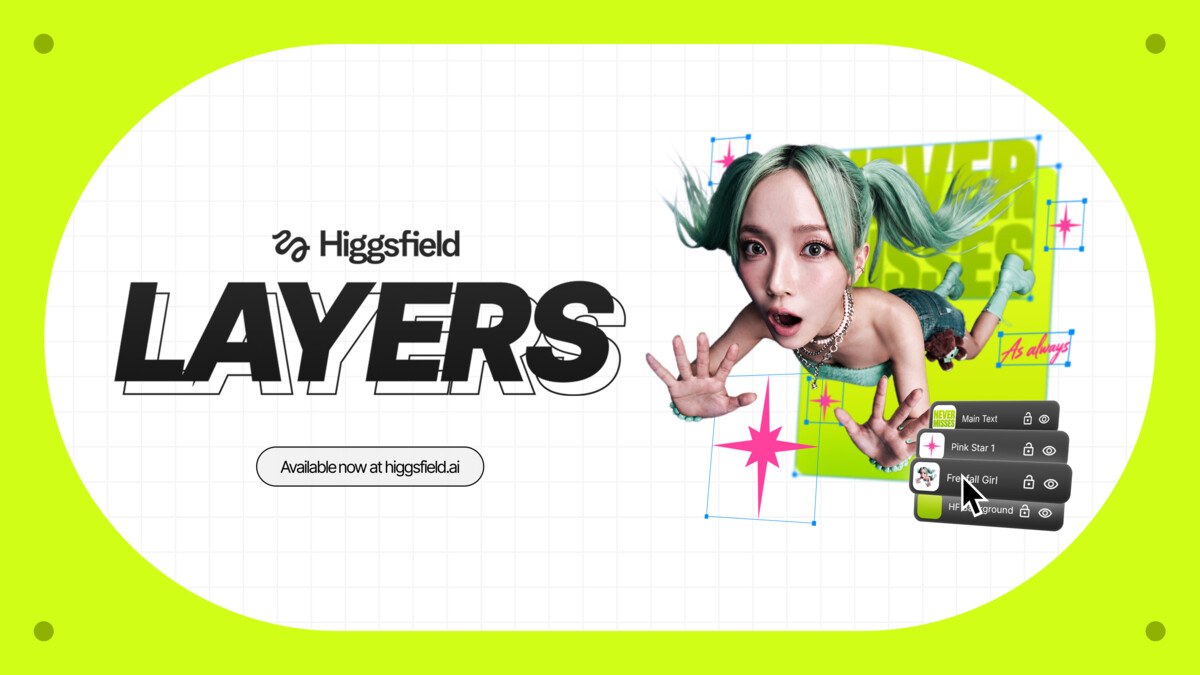
Hey, it’s Mac 🌱 You commented LAYERS, so here it is — the full breakdown of Higgsfield’s new Layers feature, the AI image editor that takes one flat image and splits it into real, editable layers. Swap the background, the object, even the text — and nothing else moves.
😩 The problem it kills
You know the pain: you generate (or get handed) a flat image — a product poster, a campaign visual, a mockup — and one thing needs to change. The price. The headline. The background. In the old world that meant re-rolling the whole image and praying the AI kept everything else the same, or begging for the original PSD that nobody has.
Layers ends that. Upload any flat image — a photo, a render, an AI generation, a screenshot — and it decomposes it into its component parts: background, subject, text, decorations, each as its own independently editable layer. It can separate up to 20 elements, and edits to one layer leave the rest of the composition untouched.
🧰 What’s actually in the box
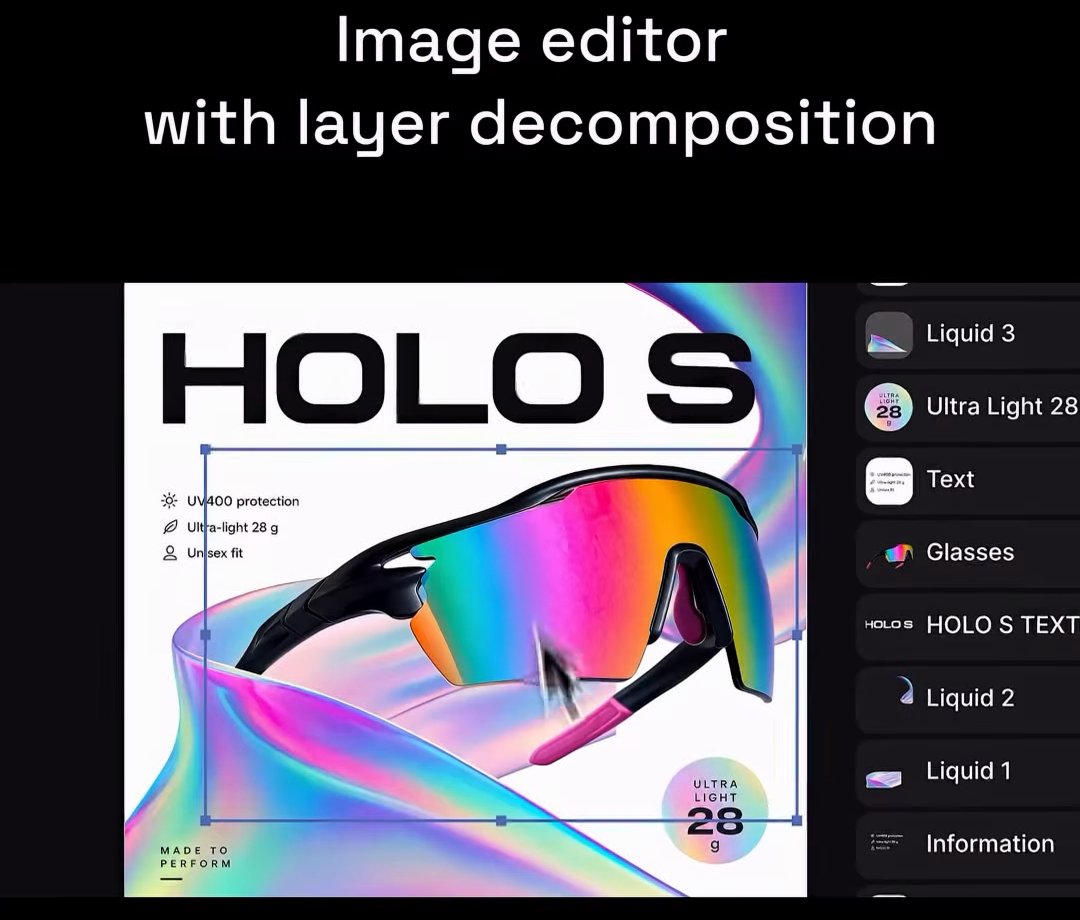
Layers lives inside Higgsfield Edit, the platform’s AI image editor, which now covers nine tools. Three of them just launched, and they’re the ones that matter here:
| Tool | What it does |
|---|---|
| Layer Decomposition | Splits a flat image into independently editable elements — background, subject, and other distinct parts, each returned as its own layer |
| Edit Text | Finds every line of text baked into the image, lets you retype any line, and regenerates it matching the original font, color, and placement |
| Remove Background | Strips the background with pixel-level edges and drops the cutout straight into your project — no download-and-re-upload round trip |
The layer engine is powered by Seedream 5.0, and once an image is decomposed you can move, resize, hide, delete, or regenerate any single layer while the rest stays locked in place.
🪜 How to use it (three steps)
Layer Decomposition:
- Open an image asset and select Layer Decomposition from Edit Image.
- Set your options: resolution (1K, 1.5K, or 2K), mode (Standard or Fast), and layer count (5 by default — set it higher for finer control).
- Hit Generate. The image comes back separated into layers — background, subject, and distinct elements — each shown as its own thumbnail, ready to edit individually.
Edit Text (the one that feels like magic):
- Open the image and select Edit text from Edit Image.
- Run Detect text — the tool finds every line of text on the image and lists them.
- Change any line to your new wording, then Generate. The replacement text lands in the original design, matching the font, color, and placement it replaced.
Remove Background: open the image, select Remove background, generate. The subject drops straight into the project so you can composite it into a new scene without leaving the editor.
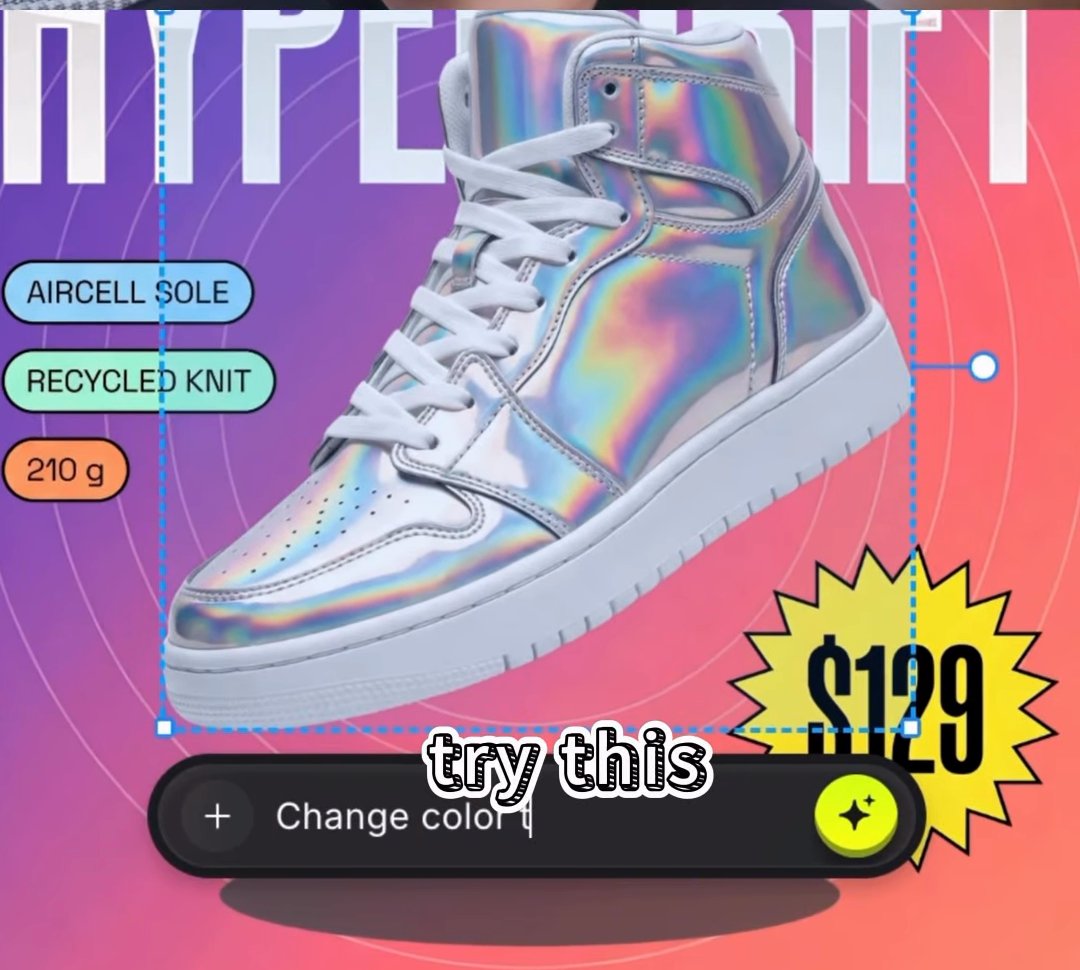
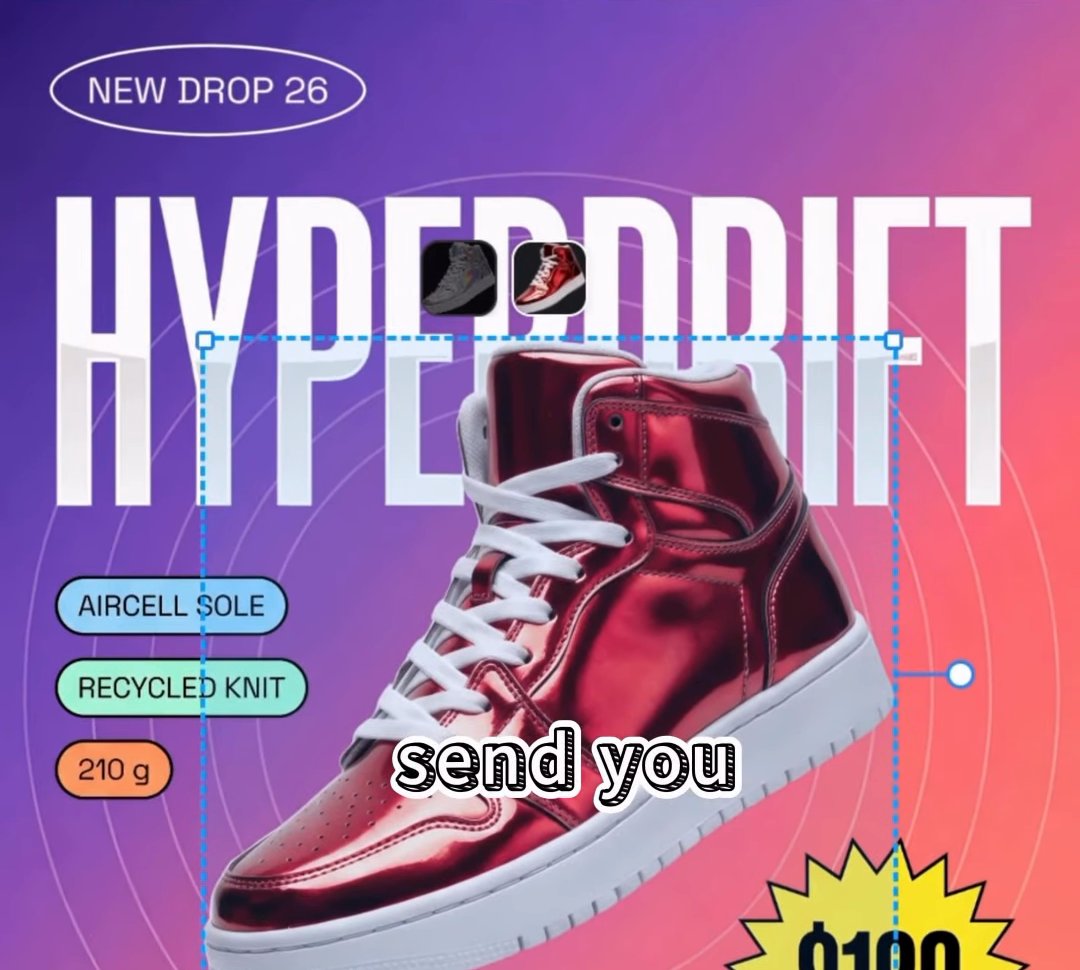
And because every element sits on its own layer, targeted edits are one prompt away. Type “change color to red” and only the shoe changes — the poster layout, badges, and price tag stay exactly where they were:
💳 What it costs
Editing runs on credits, and each tool has its own price:
| Tool | Settings | Cost |
|---|---|---|
| Layer Decomposition | 2K, 8 separate layers | 24 credits (~$1.20) |
| Edit Text | Text detection + editing | 3.5 credits (~$0.18) |
| Remove Background | Subject detection + removal | 1 credit (~$0.05) |
Layer separation and region edits sit on the paid plans. If you’re on the fence, the Edit Text tool is the cheap way to test whether the engine understands your kind of image — at roughly 18 cents a go, it’s basically free to find out.
⚠️ Honest limits
- Text needs to be prominent. Edit Text works best when the target text is large and clear in the frame. Text that’s too small or too far away can still come back with artifacts after regeneration.
- It’s a reconstruction, not your original PSD. The separated layers are the AI’s best semantic guess at how the image is structured. For most marketing and content work that’s more than good enough — but don’t expect a pixel-perfect rebuild of a designer’s original file.
- Credits add up at 2K. High-resolution decomposition with many layers is the priciest operation. Prototype at lower settings, then do the final split at 2K.
🧩 The rest of the kit
Once your image is layered, the other Edit tools compound nicely: Relight repositions the lighting on a shot after the fact, Angles changes the camera perspective across a full 360°, Expand & Crop extends the canvas with AI-generated fill, Upscale pushes images and clips up to 4K, and Draw to Edit lets you sketch directly on the frame to tell the editor what to change.
Try it here: higgsfield.ai/layers
Sources:
- How to Edit Photos with AI on Higgsfield: Step-by-Step Guide (Higgsfield)
- Higgsfield Layers — product page (Higgsfield)
- Fix AI-Generated Text With 1 Click — Higgsfield Layers Edit (Creative Pad Media)
Related writing
OpenAI DevDay 2026: ChatGPT Doesn't Wait for You Anymore
OpenAI's DevDay 2026 shipped always-on agents called dots, a shared workspace for them, GPT-6.1 Sol at a fifth of Astra's price, a 300-token-per-second speed tier, and its own answer to Jev. Here's what actually launched, what it costs, and where I'd start.
- AI News
- AI Models
- Agents
- AI Engineering
Jev: The Most Talked-About AI Model of 2026 Doesn't Say a Word
TypeSafe AI came out of stealth with $40M and a model that can't write a sentence. Three days later it was the fastest-adopted model in Vercel's AI Gateway history. Here's what Jev actually does, what the benchmarks leave out, and the four places I'd put it first.
- Jev
- TypeSafe AI
- AI Models
- AI Engineering